.i18n/conf.yml
The configuration file for i18n.site is .i18n/conf.yml, and the content is as follows:
i18n:
  fromTo:
    en:
upload:
  ext:
    - md
nav:
  - i18n: home
    use: Toc
    url: /
  - i18n: doc
    menu: NB demo1,demo2
    use: Doc
  - i18n: blog
    use: Blog
addon:
  - i18n.addon/toc
Among them, the ext: configuration item under upload indicates that only .md files will be uploaded when publishing.
Top Navigation nav
The nav: configuration options correspond to the navigation menu at the top of the homepage.
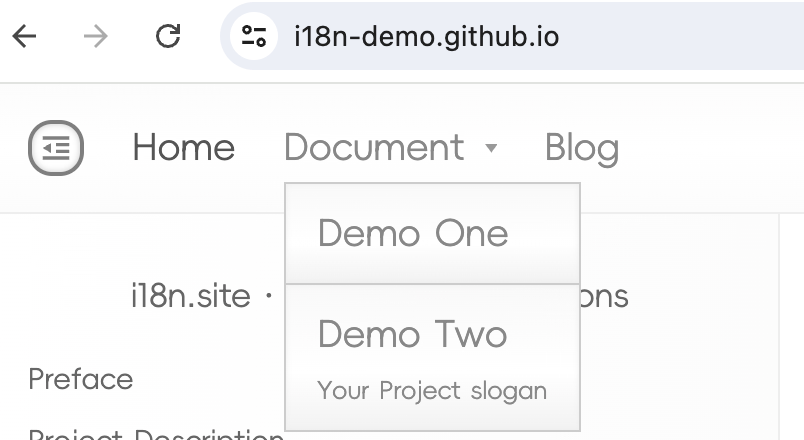
Among them, i18n: home corresponds to home: Home in en/i18n.yml (where en is the source language of the project translation).
The content of en/i18n.yml is the text displayed in the navigation menu, which will be translated according to the fromTo configuration, for example, translated to zh/i18n.yml.
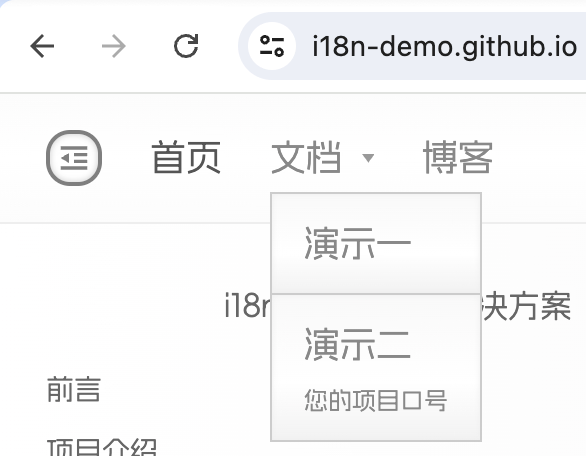
After the translation is completed, you can modify the values in the translated yml file, but do not add or delete keys in the translated yml file.
use: Toc - Single File Template with Table of Contents
In the nav configuration:
  - i18n: home
    use: Toc
    url: /
use: Toc indicates that the Toc template is used for rendering, which is for rendering a single Markdown file.
TOC is the abbreviation of Table of Contents. When this template is rendered, the outline of this Markdown file will be displayed in the sidebar.
url: represents the file path of the Markdown file ( / corresponds to the root directory /README.md, and this file name requires an uppercase prefix and a lowercase suffix).
use: Md - Single File Template without Table of Contents
The Md template is similar to the Toc template and is used to render a single Markdown file. However, the Md template does not display the outline in the sidebar.
You can change use: Toc to use: Md in the above configuration, run i18n.site in the md directory again, and then visit the development preview URL to observe the changes on the homepage.
use: Blog - Blog Template
The blog template displays a list of articles (titles and abstracts) in the order of their publication dates.
→ Click here to learn about the specific configuration
use: Doc - Multi-File Document Template
In the configuration file:
  - i18n: doc
    menu: NB demo1,demo2
    use: Doc
It indicates that the Doc template is used for rendering.
The Doc template supports integrating multiple Markdown files to generate a document outline for single or multiple projects.
Multiple Projects and Multiple Files
The i18n:doc configuration in .i18n/conf.yml is for multi-project multi-file rendering mode.
Here, menu: NB demo1,demo2 indicates that the NB template is used to render the drop-down menu.
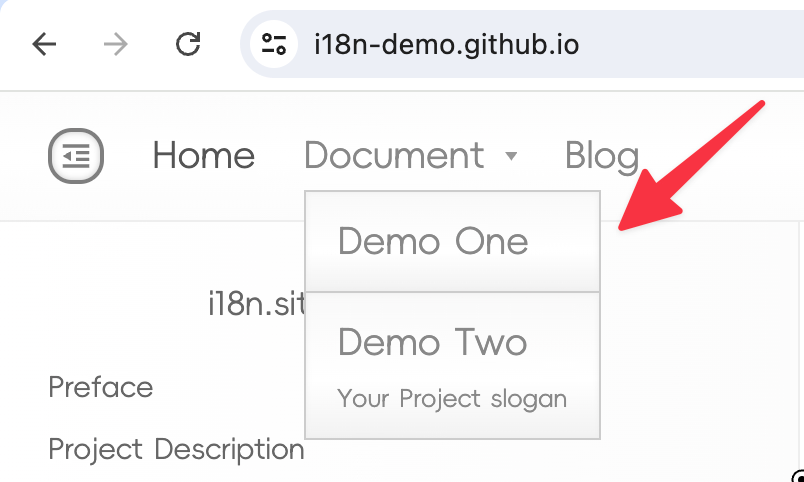
NB is the abbreviation of Name Brief, indicating that the drop-down menu can display the project's name and slogan.
NB is followed by the parameters demo1,demo2 passed to it.
Note: There should be no spaces before and after the comma , in demo1,demo2.
The corresponding directory index file for the above parameters is:
Single Project and Multiple Files
If you have only one project, you can configure it as follows.
  - i18n: doc
    url: flashduty
    use: Doc
[!WARN]
Single project with multiple files does not support configuring url as the root path /
If the root path is not configured in conf.yml → nav:, when accessing the homepage of the website, it will automatically redirect to the first URL under the nav: configuration.
This design is to better distinguish project documents, blogs, and other content through directories.
It is recommended to use a single file and a single page as the homepage.
[!TIP]
If url is not specified, url defaults to the value of i18n. This rule also applies to other templates.
TOC Table of Contents Index
If the use: Doc template is enabled in the configuration, please enable the plugin i18n.addon/toc in .i18n/conf.yml. The configuration is as follows:
addon:
  - i18n.addon/toc
i18n.site will automatically install and execute this plugin, read the TOC directory index file, and generate the directory outline in json format.
If it is a single project with multiple files, the root directory of TOC is the directory corresponding to url: in the source language directory. For example, if the source language is Chinese, the file corresponding to url: flashduty is zh/flashduty/TOC.
If it is multiple projects and multiple files, there is no need to configure url:. The root directory of TOC is the directory corresponding to the value of i18n
Detailed Content Explanation
The content of en/blog/TOC is as follows:
README.md

news/README.md
  news/begin.md
Indentation is used to indicate levels
The first line of en/blog/TOC above, README.md, corresponds to i18n.site in the image below, which is the project name.
The next two lines are as shown in the screenshot below.
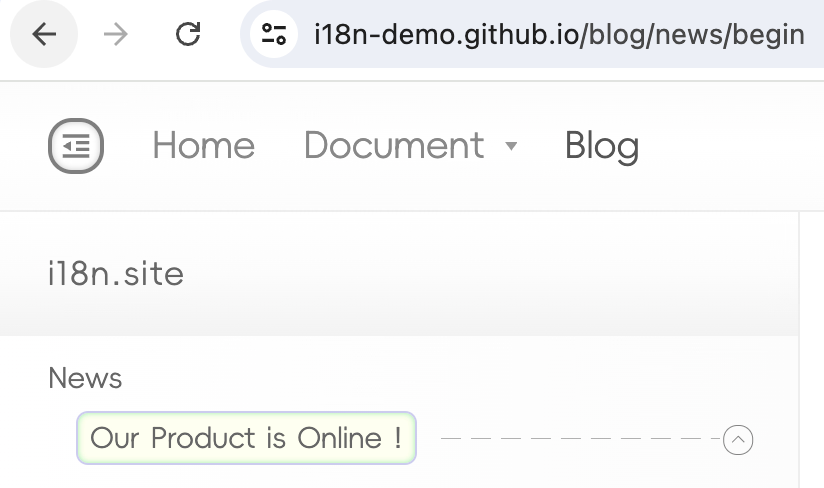
news/README.md corresponds to Newsnews/begin.md corresponds to Our Product is Online!
The TOC file uses indentation to indicate the hierarchical relationship of the outline, supports multi-level indentation, and lines starting with # are comments.
The parent level only writes the title, not the content
When there are multiple levels of indentation, the parent level only writes the title and not the content. Otherwise, the layout will be messed up.
Project README.md
The README.md file of the project, such as en/demo2/README.md, can contain content.
Note that the content of this file does not display a table of contents outline, so it is recommended to keep it short and write a brief introduction.
Project Slogan
You can see that Demo Two has its project slogan below the drop-down menu and the catalog outline project name: Your Project slogan.
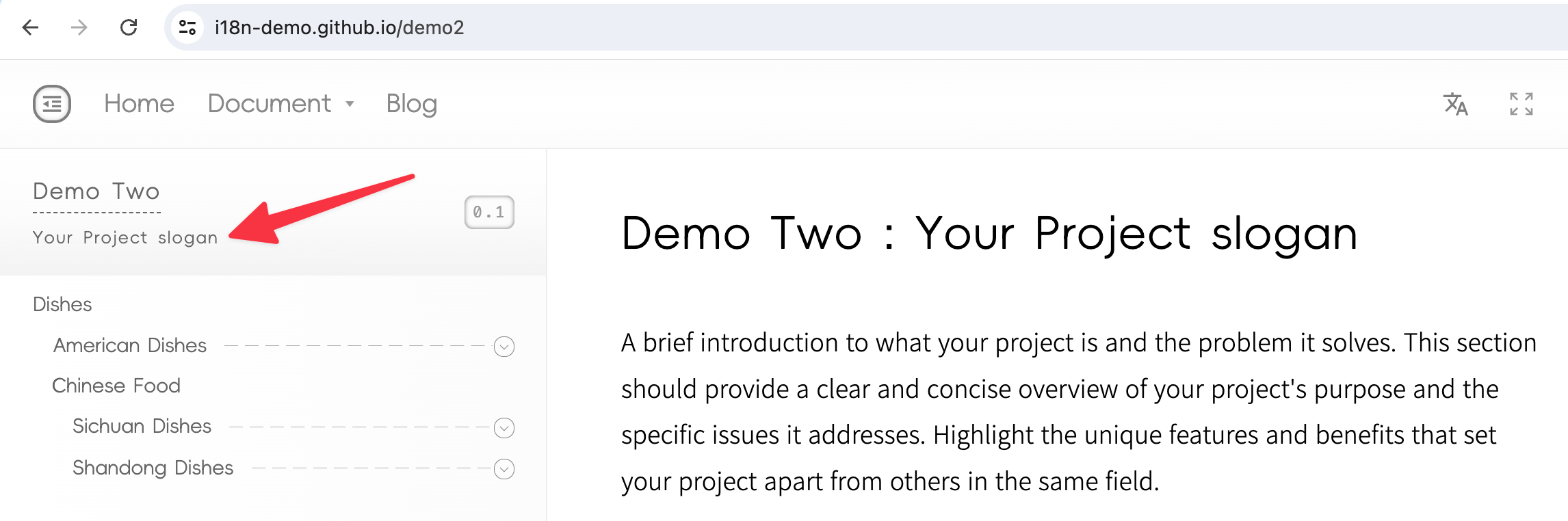
This corresponds to the first line of en/demo2/README.md:
# Demo Two : Your Project slogan
The content after the first colon : of the first-level heading in the project README.md is considered the project slogan.
Users from China, Japan, and Korea, please note that you should use a half-width colon : instead of a full-width colon.
How to Move TOC in Bulk?
TOC files need to be placed in the directory of the source language.
For example, if the source language is Chinese, then the TOC above is zh/blog/TOC.
If the source language is modified, you need to batch move the TOC files of a certain language in the project to another language.
You can refer to the following command:
rsync -av --remove-source-files --include='*/' \
--include='TOC' --exclude='*' en/ zh/
Please modify en/ and zh/ in the above command to your language code.
Default Loading Without Configuration Path
For a certain path being accessed, if the path prefix is not configured in nav:, the Markdown file corresponding to the path will be loaded by default and rendered using the Md template.
For example, if /test is accessed and nav: is not configured for this path, and the current browsing language is English (code en), then /en/test.md will be loaded by default and rendered using the Md template.
If /en/test.md does not exist, the default 404 page will be displayed.